CLI & Slash Command Reference
Easy lookup guide for every
talkops(andops) terminal command, keyboard shortcut, and in-chat/slashcommand.
You can control TalkOps in two ways:
- From your terminal (
talkops/ops) — Start an interactive chat, run a one-off question (-p), launch a shared team server (talkops serve), sign in (talkops auth), or manage plugins, skills, and tools. - Inside the chat window (
/,!,@) — Type/in the chat box to switch modes (/smart), pick AI models (/model,/pool), switch cloud accounts (/cloud), install plugins (/plugins), or review code (/review).
Quick Jump:
Main talkops Flags ·
serve ·
auth ·
threads ·
mcp ·
plugin ·
addon ·
skills ·
agents ·
doctor ·
benchmark ·
Chat Shortcuts ·
Slash Commands
Starting TalkOps (Main Flags)
Running talkops (or the shorter ops alias) opens the interactive chat window in your terminal. If you want to ask a single question and exit—for example, inside a script or CI/CD pipeline—pass -p "your question".
# Open the interactive chat window
talkops                           # or: ops

# Open the chat window in Smart Mode and send an initial question
talkops --smart -m "Check if any pods in kube-system are failing"

# Run a single question and exit (great for scripts and CI/CD)
talkops -p "Check security groups in ap-south-1 for open SSH ports"

# Pipe error logs directly into TalkOps
kubectl logs deploy/checkout-api -n prod --tail=100 | talkops -p "Why is this service returning 502 errors?"
Everyday Options (Prompts, Safety & Cloud)
| Flag | Short / Alias | What It Does |
|---|---|---|
--prompt <text> | -p, -n | Run a single question without opening the interactive chat window, print the answer, and exit. |
--message <text> | -m | Open the interactive chat window and immediately send <text> as your first message. |
--smart | — | Turn on Smart Mode: automatically picks a fast, low-cost AI model for simple checks and a stronger model for hard problems, while checking commands for safety. |
--auto-approve | -y | Automatically run routine commands without asking [y/n], while still blocking dangerous commands. |
--approval-mode <mode> | — | Choose how commands are approved: manual, smart, auto, or yolo (yolo is only for -p or talkops serve). |
--read-only | --dry-run | Safe mode—allows TalkOps to read and inspect your cloud or cluster, but blocks any changes or deletions. |
--aws-profile <name> | — | Use a specific AWS profile for this session (for example, staging or prod-readonly). |
--aws-region <region> | — | Use a specific AWS region for this session (for example, us-east-1 or ap-south-1). |
--model <spec> | -M | Pick which AI model to use (for example, anthropic:claude-sonnet-4-5 or openai:gpt-5.6-luna). |
--agent <name> | -a | Start with a specific specialist agent (for example, -a aws-cloud-security-engineer). |
--skill <name> | -s | Run a saved SKILL.md runbook right when the session starts. |
--resume <thread_id> | -r | Continue a previous conversation by its ID. |
--sandbox [provider] | — | Run commands and file edits inside an isolated cloud sandbox (modal, daytona, runloop, langsmith, agentcore, or vercel). |
--server-url <url> | — | Connect to a shared team server (talkops serve) instead of running locally. |
--cwd <path> | --workspace | Run TalkOps inside a specific folder. |
--version / --help | -v / -h | Show the installed version or help text. |
Advanced CLI Flags (Scripting, JSON Output, Goals & Debugging)
| Flag | Short | What It Does |
|---|---|---|
--quiet | -q | Only print the final answer in -p mode (hides step-by-step progress). |
--no-stream | — | Wait until the answer is finished before printing it in -p mode. |
--json | --output-format json | Output results as JSON so other scripts can read them easily. |
--stdin | — | Read piped input from stdin and attach it to your prompt. |
--max-turns <int> | — | Stop after at most <int> steps in -p mode. |
--timeout <sec> | — | Stop if a -p run takes longer than <sec> seconds (exits with code 124). |
--goal <objective> | — | Start the interactive chat with a multi-step goal that TalkOps works toward until finished. |
--rubric <text|@file> | — | Give -p mode a checklist of requirements (or a @file.md). TalkOps keeps working until every item passes. |
--rubric-model <spec> | — | Choose which AI model grades your --rubric checklist. |
--rubric-max-iterations <n> | — | Maximum number of retries when checking --rubric. |
--default-model [spec] | — | Show your saved default model, or save <spec> as your new default. |
--clear-default-model | — | Reset your saved default model. |
--model-params <json> | — | Pass extra model settings as JSON (for example, '{"temperature": 0.0}'). |
--no-subagents | — | Turn off specialist subagents and do everything in the main chat. |
--shell-allow-list <list> | -S | Comma-separated list of allowed shell commands (recommended, all, or specific command names). |
--tnr | — | Enable automatic rollback if a change fails verification. |
--api-key <key> | — | API key (TALKOPS_API_KEY) for signing in to a Central Server or Control Plane. |
--user-id <id> | — | Your user ID (TALKOPS_USER_ID) when sharing a Central Server with teammates. |
--mcp-config <path> | — | Load an extra .mcp.json tool configuration file. |
--no-mcp | — | Disable external MCP tool servers for this session. |
--trust-project-mcp | — | Trust project .mcp.json servers without asking for confirmation. |
--sandbox-id <id> | — | Connect to an already-running cloud sandbox container by its ID instead of creating a new one. |
--sandbox-snapshot-name <name> | — | Pre-built container snapshot or blueprint name for --sandbox langsmith or --sandbox runloop. |
--sandbox-setup <path> | — | Run a local .sh setup script inside the remote sandbox right after it starts. |
--startup-cmd <cmd> | — | Run a local shell command before the first prompt starts. |
--trajectory-file <path> | — | Save a detailed step-by-step log (JSONL) of the run to <path>. |
--verbose / --log-level | -V | Show detailed debug logs (debug, info, warning, error). |
--log-dir / --log-file | — | Customize where log files are saved (default: /tmp/talkops_logs/talkops.log). |
CLI Subcommands
talkops serve (Aliases: webhook, webhooks)
Starts the shared Central Server so teammates can connect from their terminals (--server-url) and monitoring tools (like PagerDuty, Datadog, Prometheus, and GitHub) can send live alerts for automated investigation.
# Start the Central Server on port 2024
talkops serve --host 0.0.0.0 --port 2024

# See all built-in webhook URLs for PagerDuty, Datadog, GitHub, etc.
talkops serve list

# See which server features (addons) are enabled
talkops serve addons
| Action / Flag | Default | What It Does |
|---|---|---|
talkops serve [start] | (default) | Starts the Central Server and webhook listener. |
talkops serve list (ls) | — | Prints a table of all 9 built-in webhook integrations and their URLs. |
talkops serve addons | — | Lists the active server features (client-gateway, core-auth, webhooks, plus any custom addons). |
--host <addr> / --port <int> | 0.0.0.0:2024 | Address and port where the server listens. |
--webhook-port <int> | Same as --port | Optional separate port just for incoming webhooks. |
--postgres-uri <uri> | SQLite | PostgreSQL database URL for saving team conversations (uses local SQLite if omitted). |
--profile <name> | default | Server mode: default (all features), api-only (team terminals only), webhook-worker (alerts only), or enterprise-full. |
--approval-mode <mode> | smart | How server runs approve commands (smart, auto, yolo, or manual). |
--read-only / --dry-run | False | Safe mode—allows the server to inspect resources but blocks changes or deletions. |
--aws-profile / --aws-region | Default | Default AWS profile and region for server runs. |
-V / -q / --json | — | -V for debug logs, -q to hide live log streaming, --json for JSON output on list/addons. |
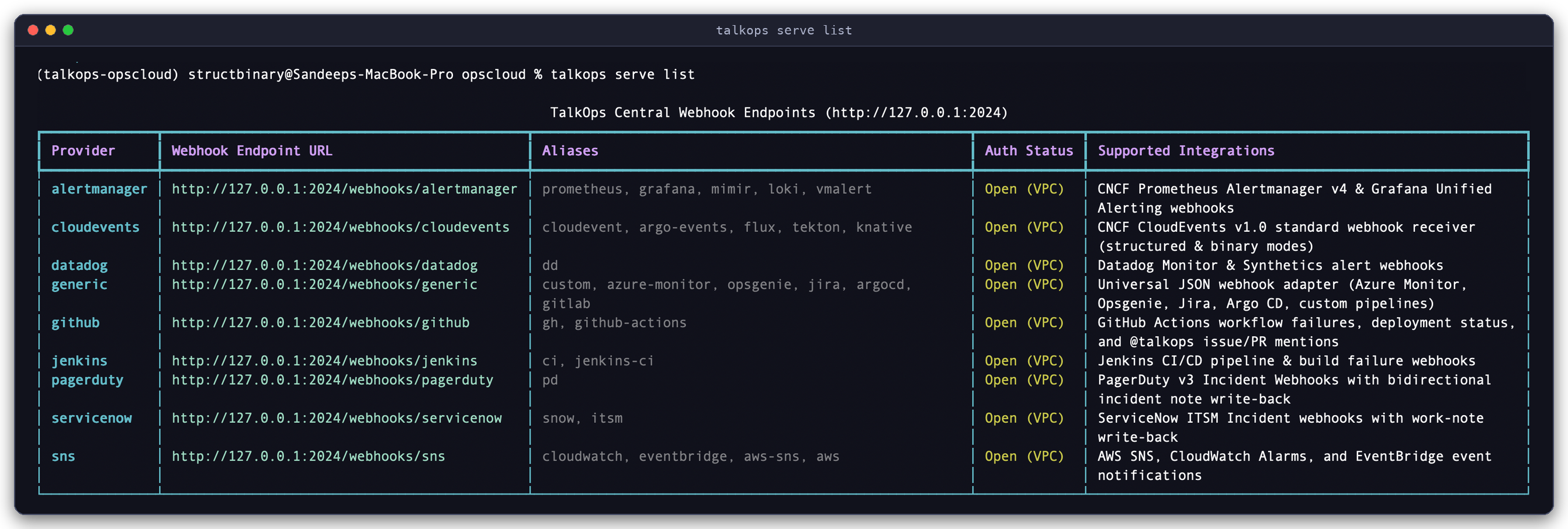
Viewing Webhook URLs (talkops serve list): Checking all 9 built-in webhook endpoints, shorthand aliases, and supported monitoring/CI tools.
talkops auth
Manages your AI model API keys, your sign-in to a Central Server or Control Plane, and checks your active AWS login.
# Sign in via your browser or save a Central Server login
talkops auth login --sso
talkops auth login --server-url http://talkops.internal:2024 --api-key oc_live_... --user-id alice

# Save an AI provider API key (stored securely in your system keyring)
talkops auth set anthropic sk-ant-...
talkops auth set openai sk-proj-...

# Check which AI providers and cloud accounts are connected
talkops auth status
talkops auth aws --profile prod-admin --region us-east-1
| Subcommand | Example | What It Does |
|---|---|---|
status | talkops auth status | Shows your sign-in status, which AI providers have keys configured, and your active AWS account. |
login | talkops auth login [--sso] [--server-url <url>] [--api-key <key>] | Signs in through your browser (--sso) or saves your API key and server URL so you don't have to type them every time. |
logout | talkops auth logout [--all | --account | --provider <name>] | Signs out of your account or removes saved keys. |
set | talkops auth set <provider> [api_key] | Saves an API key for any AI provider (prompts securely if you omit the key on the command line). |
list (ls) | talkops auth list | Lists all 26+ supported AI model providers and shows which ones are ready to use. |
remove (rm) | talkops auth remove <provider|all> | Deletes a saved API key. |
aws | talkops auth aws [--profile <name>] | Checks which AWS account and IAM role your terminal is currently using. |
token | talkops auth token [--refresh] | Prints your current session token for use in custom scripts. |
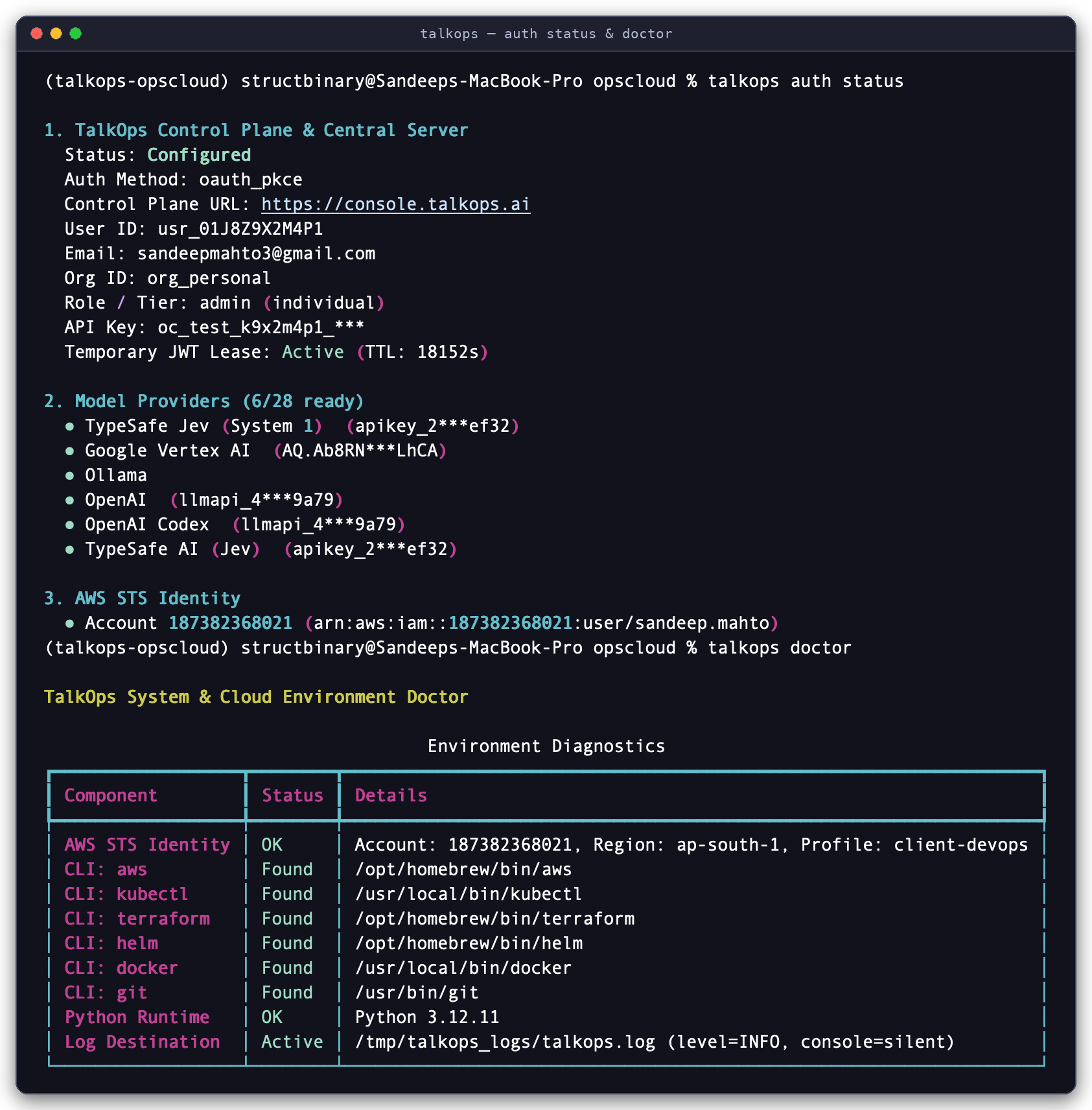
Checking Your Setup (talkops auth status & talkops doctor): Verifying your sign-in status, AI provider keys, AWS account identity, and installed DevOps tools (aws, kubectl, terraform, helm, docker, git).
talkops threads
Lists or deletes saved conversations from your computer (~/.talkops/sessions.db) or from a shared Central Server (--server-url).
# List your saved conversations
talkops threads list

# List your conversations on a shared Central Server
talkops threads list --server-url http://talkops.internal:2024 --user-id alice

# Resume or delete a conversation by its ID
talkops -r 8f3a9c12
talkops threads delete 8f3a9c12-4b2e-4d1a-9e5b-123456789abc
talkops plugin (Alias: plugins)
Finds and installs ready-made specialist plugins (like AWS FinOps, SRE, Kubernetes, Terraform, and Security agents) from the TalkOps Marketplace or your team's Git repository.
# Search for and install specialist plugins
talkops plugin search finops
talkops plugin install aws-finops-agent
talkops plugin install aws-cloud-security-engineer --scope project

# List all available and installed plugins
talkops plugin list
| Subcommand | Syntax | What It Does |
|---|---|---|
list (ls) | talkops plugin list | Shows all installed and available plugins. |
search | talkops plugin search <keyword> | Searches plugins by topic (such as finops, security, eks, or terraform). |
install | talkops plugin install <name> [--scope {user,project,local}] | Installs a plugin for yourself (user) or for your current repository (project). |
uninstall | talkops plugin uninstall <name> | Removes an installed plugin. |
enable / disable | talkops plugin <enable|disable> <name> | Turns an installed plugin on or off without deleting it. |
refresh | talkops plugin refresh | Fetches the latest plugin list from the marketplace. |
marketplace | talkops plugin marketplace <list|add <repo>|remove <name>> | Adds or manages custom GitHub/Git plugin catalogs for your team. |
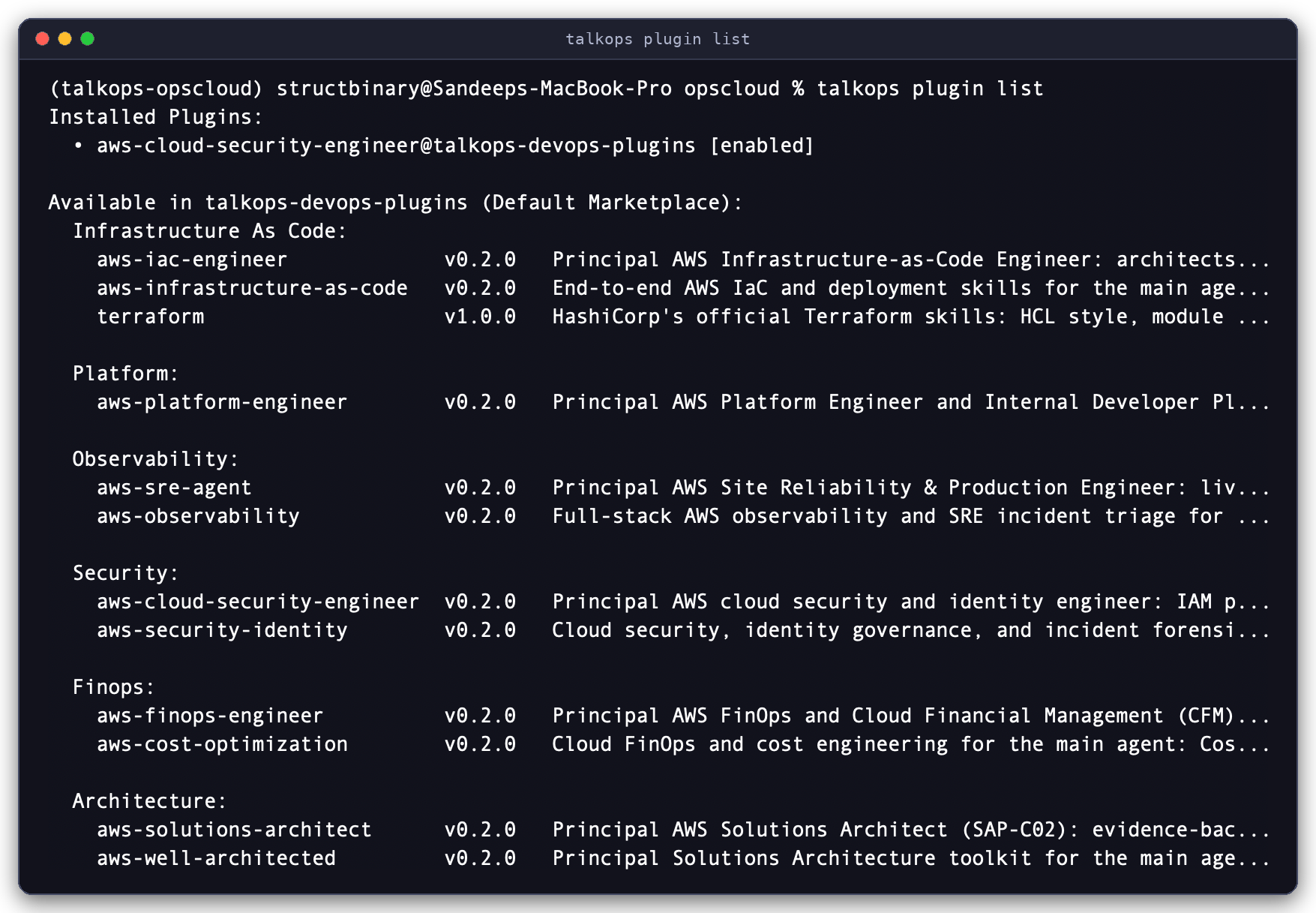
Browsing Plugins from the Terminal (talkops plugin list): Viewing installed plugins alongside available Infrastructure, Platform, Observability, Security, and FinOps specialists.
talkops skills, talkops agents, talkops mcp, talkops addon & talkops doctor
| Command | Common Usage | What It Does |
|---|---|---|
talkops skills | talkops skills listtalkops skills create <name> --projecttalkops skills info <name>talkops skills delete <name> | Lists, creates, or inspects reusable SKILL.md troubleshooting runbooks. |
talkops agents | talkops agents list | Lists all specialist agents available in your workspace and installed plugins. |
talkops mcp | talkops mcp listtalkops mcp probe | Lists external MCP tool servers configured in .mcp.json or config.toml, and tests whether they are online (probe). |
talkops addon | talkops addon listtalkops addon install <name> | Lists or installs extra server features (addons) for talkops serve. |
talkops doctor | talkops doctor | Checks that your AWS login and local DevOps tools (aws, kubectl, terraform, helm, docker, git) are installed and working. |
talkops benchmark | talkops benchmark run --suite sregym | Runs automated SRE and DevOps evaluation suites (when optional benchmark packages are installed). |
Chat Shortcuts & Input Prefixes
When you are inside the interactive talkops chat window, you can use these prefixes and keyboard shortcuts at any time:
| Shortcut / Prefix | What It Does |
|---|---|
/ | Opens the command menu—type a few letters to filter commands, skills, or agents. |
!<command> | Runs a shell command directly in your terminal and shows the output in chat (for example, !kubectl get nodes or !git status). |
@<filename> | Searches files in your project so you can attach them to your message. |
Shift+Tab | Switches between Manual, Smart, and Auto approval modes. |
Ctrl+O | Expands or collapses detailed command outputs and specialist agent steps. |
Ctrl+X | Opens your text editor ($EDITOR) to write a longer, multi-line prompt. |
Ctrl+N | Opens the notifications panel. |
Ctrl+L | Clears the screen. |
Esc | Stops the current AI response or running command. |
Ctrl+D / Ctrl+C | Exits TalkOps. |
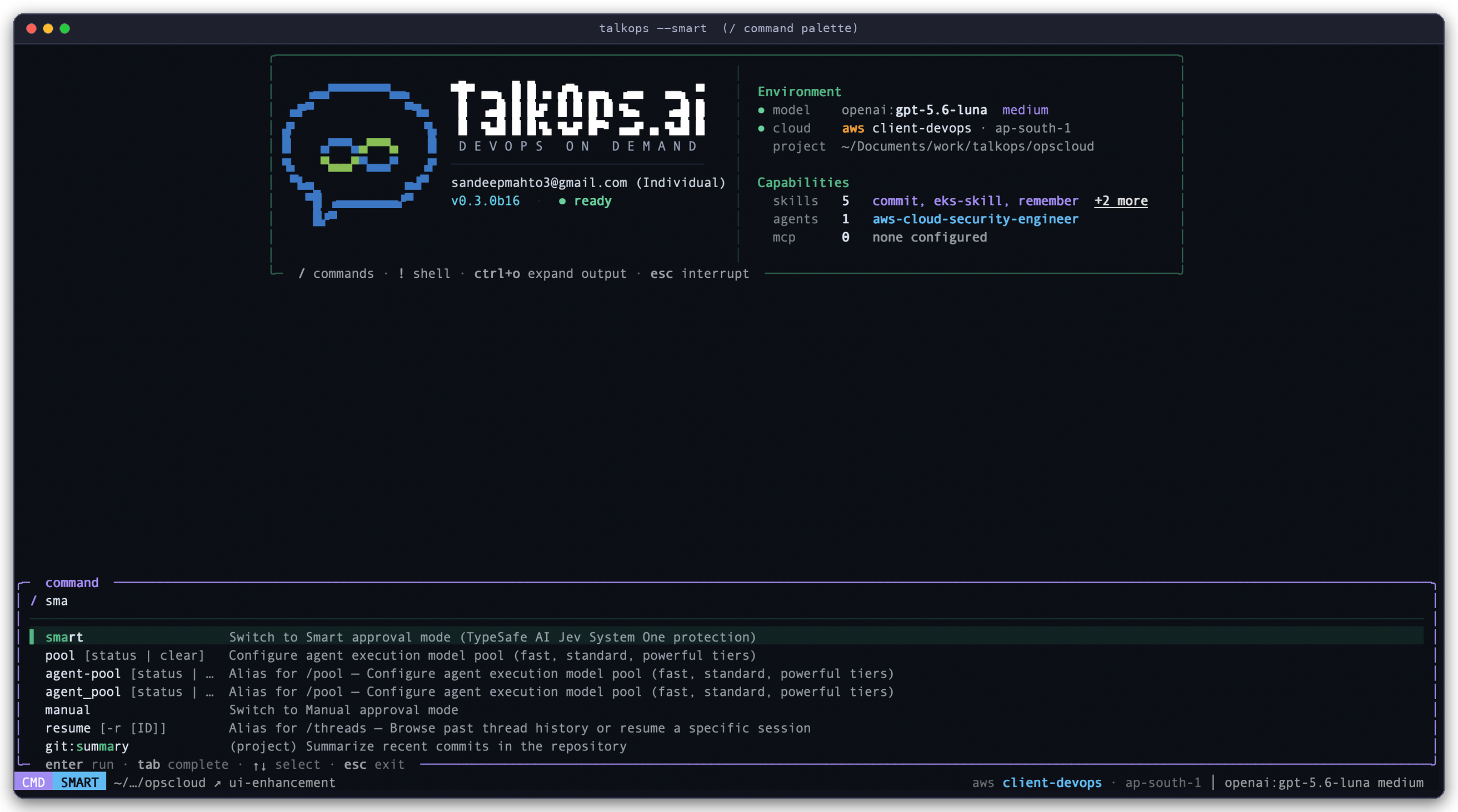
In-Chat / Command Menu: Type / and start typing (like / sma) to quickly jump to any command, skill, or specialist agent.
In-Chat Slash Commands
Every /slash command below works both when running locally and when connected to a Central Server (--server-url).
1. Approval Mode & Safety
| Command | How to Use It | What It Does |
|---|---|---|
/smart | /smart (or Shift+Tab) | Turns on Smart Mode: automatically picks the best AI model for each question and runs safe read-only commands while asking before making risky changes. |
/auto | /auto | Automatically runs routine commands without asking, while still blocking destructive commands. |
/manual | /manual | Asks for your confirmation ([y/n/e]) before running any command or editing any file. |
/permissions | /permissions | Opens a window to view or change which tools are allowed to run automatically. |
2. Choosing AI Models & Smart Mode Pools
| Command | How to Use It | What It Does |
|---|---|---|
/model | /model or /model <provider:model> | Opens a menu to switch AI models, or switches directly to the model you specify (add --default to save it as your default). |
/pool | /pool | Opens the Model Pool window so you can choose which AI models Smart Mode uses for Fast, Standard, and Powerful tasks. |
/effort | /effort [low|medium|high|max] | Adjusts how much "thinking time" reasoning models spend before answering. |
/fast | /fast | Pins the chat to your fastest model for quick back-and-forth questions. |
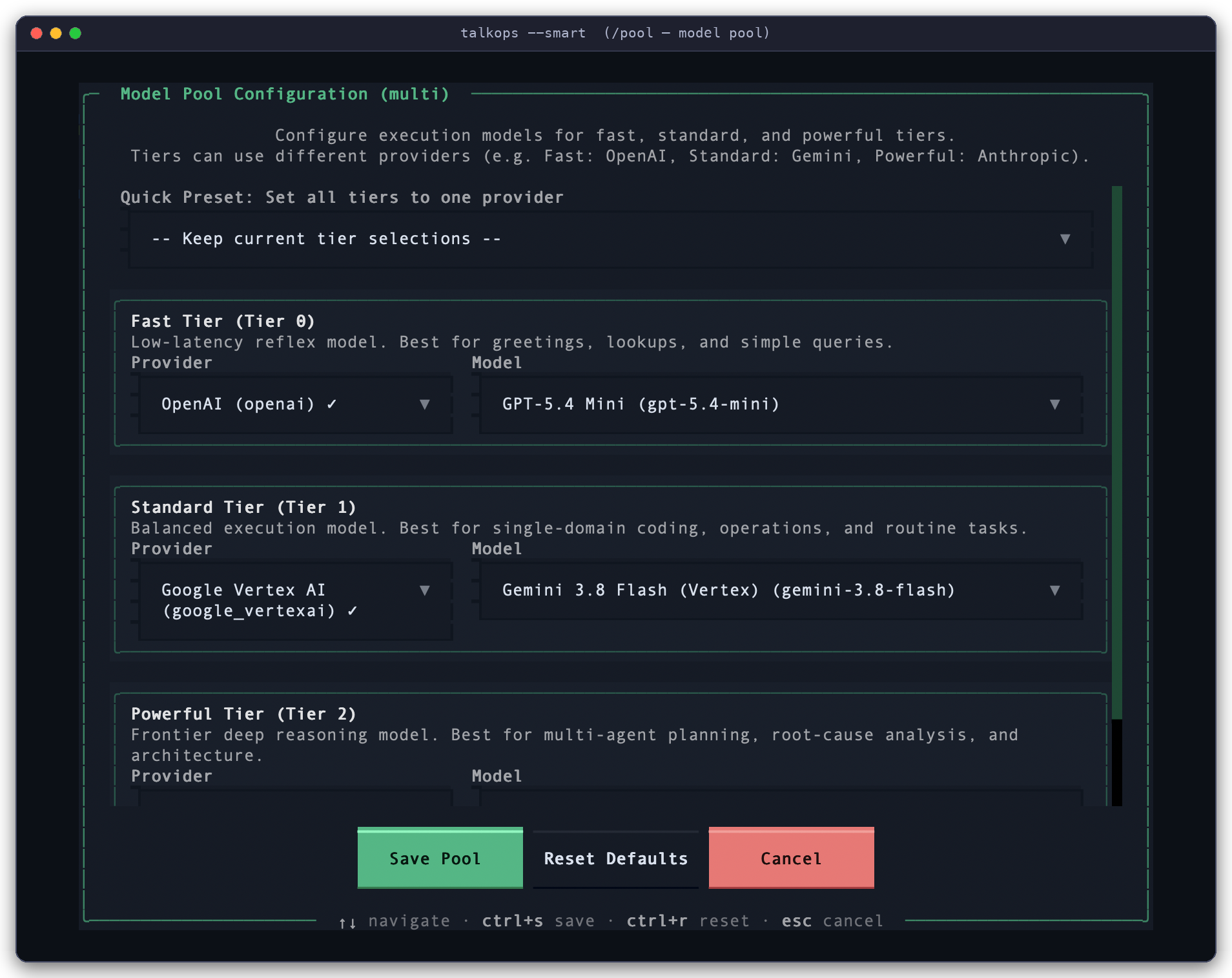
Configuring Your Smart Mode Model Pool (/pool): Pick which models handle simple checks (Fast), everyday work (Standard), and deep investigations (Powerful).
3. Cloud Accounts, Code Review & Multi-Step Goals
| Command | How to Use It | What It Does |
|---|---|---|
/cloud | /cloud (aliases: /aws, /azure, /gcp, /k8s) | Opens a window to switch between your AWS profiles, Azure subscriptions, GCP projects, and Kubernetes clusters (~/.kube/config). |
/review | /review | Reviews your uncommitted git diff changes for bugs, security risks, and infrastructure issues. |
/goal | /goal <what you want to achieve> | Gives TalkOps a multi-step goal to work on until every requirement is met (use /goal pause, /goal resume, or /goal clear to manage it). |
/rubric | /rubric set <checklist> | Sets a success checklist that TalkOps verifies before finishing a task. |
/doctor | /doctor | Checks your cloud login and local DevOps tools right inside the chat window. |
/trace | /trace | Shows the LangSmith trace link for debugging the current conversation. |
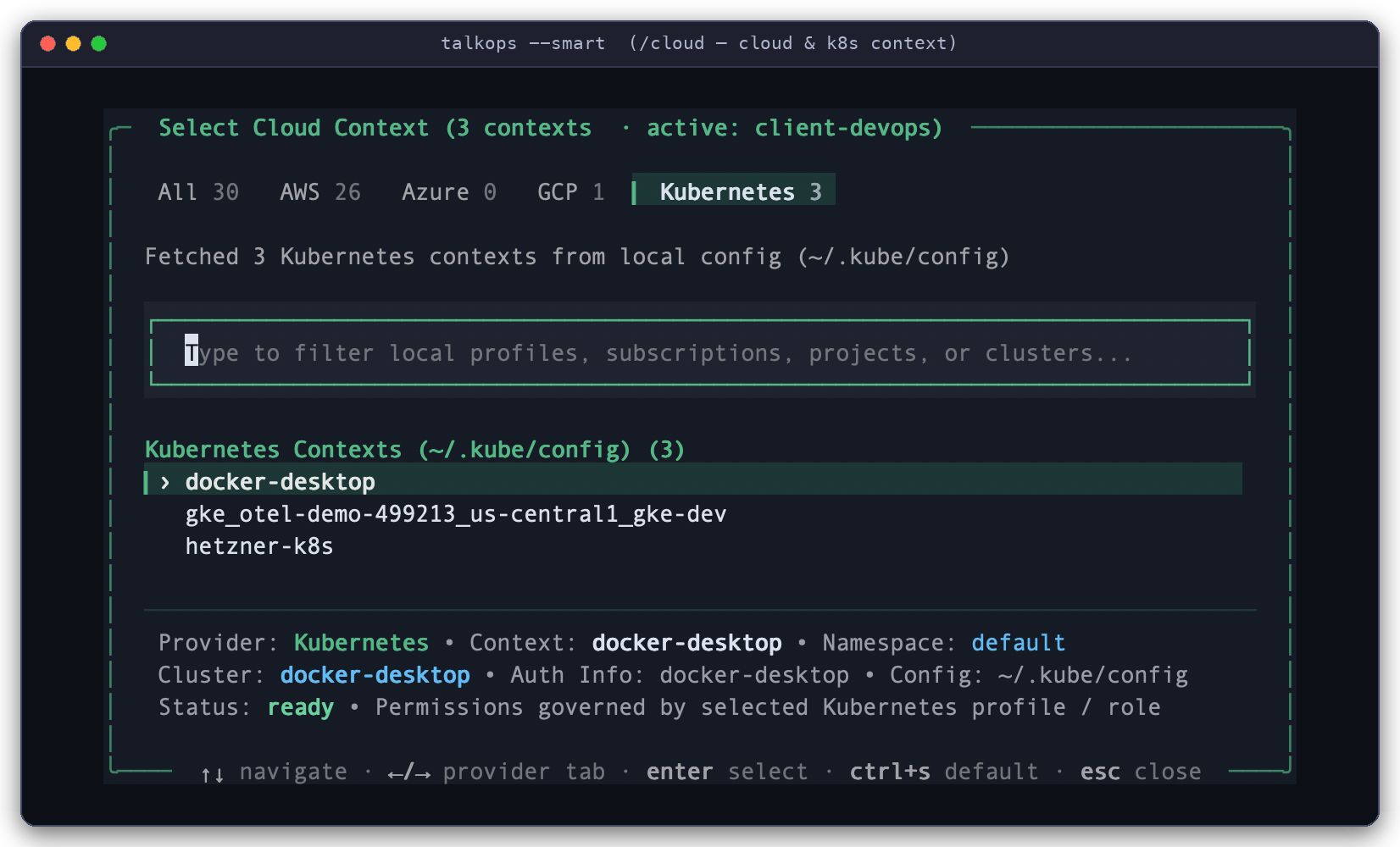
Switching Cloud & Kubernetes Accounts (/cloud): Easily switch between AWS profiles, Azure subscriptions, GCP projects, and Kubernetes clusters without leaving the chat.
4. Managing Conversations & Context
| Command | How to Use It | What It Does |
|---|---|---|
/threads | /threads (or /resume) | Opens a list of your saved conversations (and shared alert threads on a Central Server) so you can search, resume, or delete them. |
/fork | /fork (or /branch) | Makes a copy of the current conversation so you can test a fix or try another idea without changing the original thread. |
/compact | /compact | Summarizes older messages in a long chat to free up memory and keep responses fast. |
/btw | /btw <quick question> | Asks a quick side question without interrupting a running task or cluttering the main conversation. |
/context | /context | Shows how much conversation memory is currently in use. |
/cost | /cost (or /tokens) | Shows total token usage, cache savings, and estimated AI cost for the session. |
/tasks | /tasks | Views or stops background commands and manages the session to-do list. |
/loop | /loop 5m <prompt> | Repeats a check automatically on a schedule (for example, /loop 5m Check rollout status of checkout-api). |
/copy | /copy | Copies the last AI reply to your clipboard. |
/clear | /clear (or /force-clear) | Clears the screen and starts a new conversation (/force-clear also stops any running background work). |
/exit | /exit (or /quit, /q) | Saves your session and closes TalkOps. |
5. Specialist Agents, Plugins, Skills & Memory
| Command | How to Use It | What It Does |
|---|---|---|
/agent | /agent or /agent:<name> [prompt] | Opens a menu to pick a specialist agent (or switches directly with /agent:<name>). Type /agent clear to switch back to the main assistant. |
/plugins | /plugins | Opens the Plugins window to browse, install, enable, or uninstall specialist DevOps plugins without leaving the chat. |
/skills | /skills or /skill:<name> | Lists all available tools and SKILL.md runbooks, or runs a specific runbook. |
/skill-creator | /skill-creator [topic] | Helps you turn a troubleshooting workflow you just did into a reusable SKILL.md runbook. |
/mcp | /mcp | Opens the MCP Tool Server manager to check tool health or reconnect external servers. |
/remember | /remember <note> | Saves a rule or project detail (for example, /remember Our prod EKS cluster is in ap-south-1) so TalkOps remembers it in future sessions. |
/memory | /memory | Views or edits what TalkOps has saved in project and personal memory. |
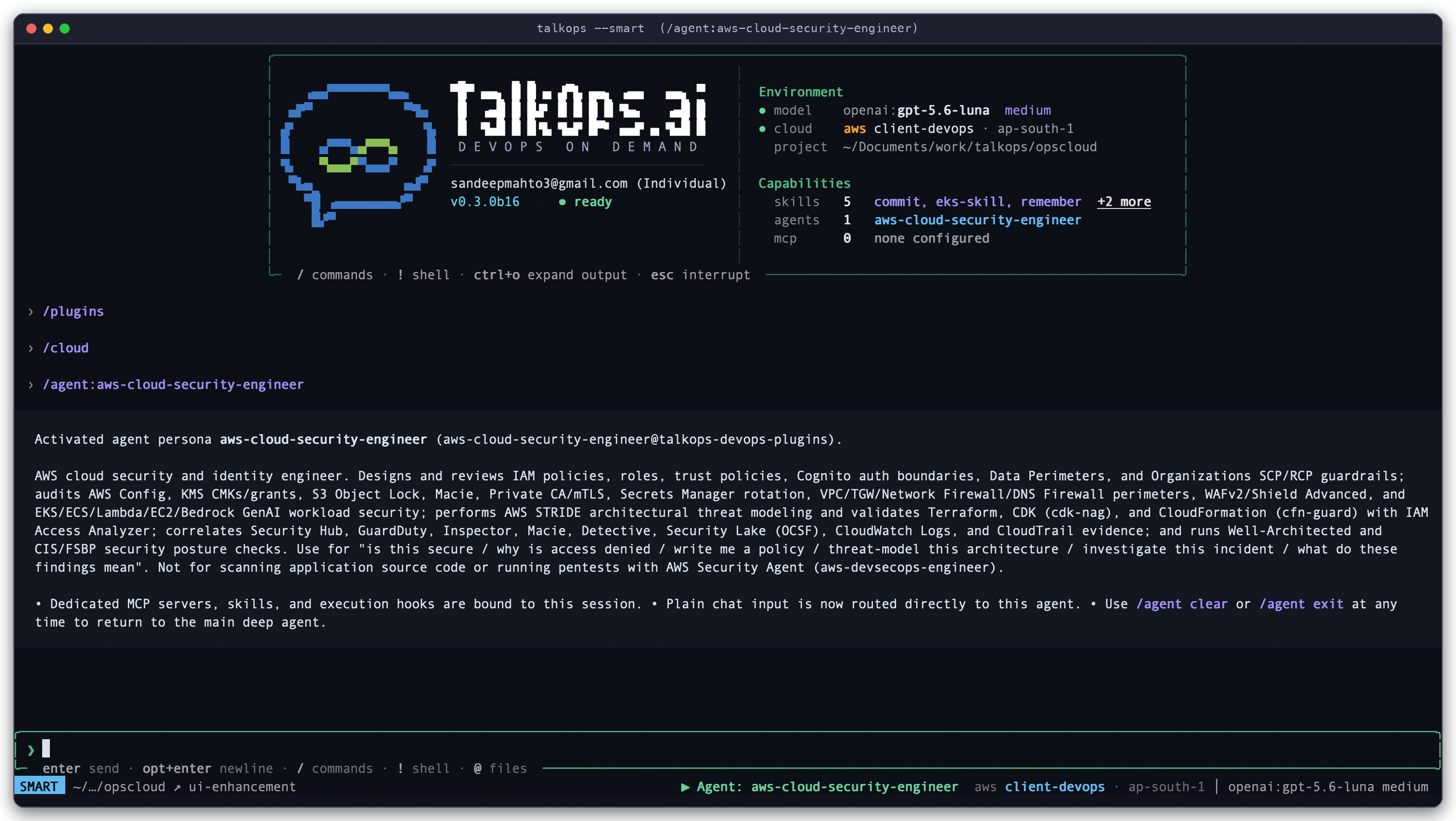
Switching to a Specialist Agent (/agent:aws-cloud-security-engineer): Loads the specialist's dedicated skills and tools and shows ▶ Agent: aws-cloud-security-engineer in the bottom bar.
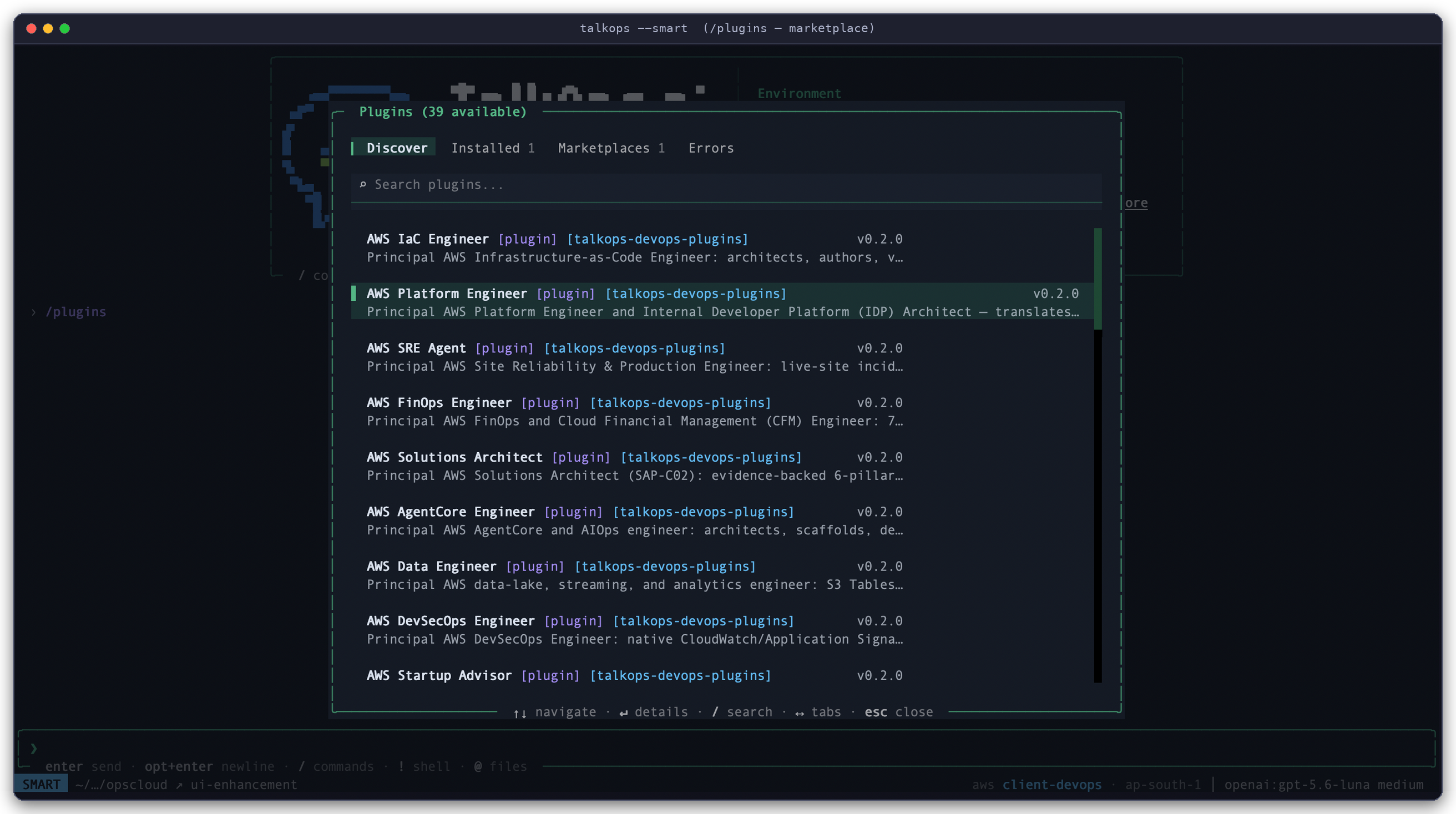
Installing Plugins Inside the Chat (/plugins): Browse and install AWS, Kubernetes, Terraform, SRE, FinOps, and Security plugins with a single keystroke.
6. Settings, Login, Updates & Appearance
| Command | How to Use It | What It Does |
|---|---|---|
/login & /logout | /login (or /auth) and /logout | Opens the sign-in window to add AI provider keys or log in to a server, or signs out. |
/config | /config | Opens the settings window to view or change TalkOps preferences. |
/reload & /restart | /reload and /restart | /reload refreshes your config files, plugins, skills, and MCP tools; /restart restarts the background engine. |
/update & /install | /update and /install <package> | Checks for new TalkOps versions (/update) or installs optional add-on packages (/install). |
/theme | /theme | Switches between dark, light, and custom color themes. |
/notifications, /timestamps, /scrollbar | /notifications, /timestamps, /scrollbar | Customizes notifications, toggles message timestamps, or shows/hides the scrollbar. |
/version, /bug, /help | /version, /bug, /help | Shows version info, reports an issue, or displays the help guide. |